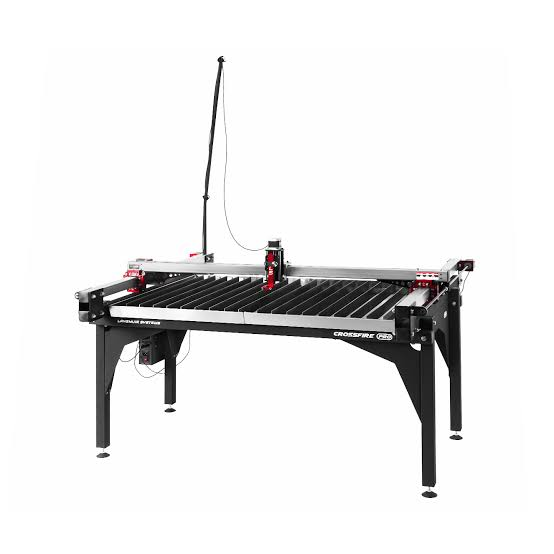
The division of labor
Langmuir’s own FireControl guide describes FireControl as the software that controls a CrossFire over USB and loads and validates programs. That is a machine-side job: it talks to the table. It does not draw your bracket.
TableCAD sits upstream of that. It is Windows CAD/CAM software: you draw the part, decide how the cut is planned, and export a program. It is not a motion-controller replacement, and nothing in this guide suggests otherwise. TableCAD’s output for CrossFire is FireControl-ready, so FireControl remains the program on the table’s PC that you open the file in.
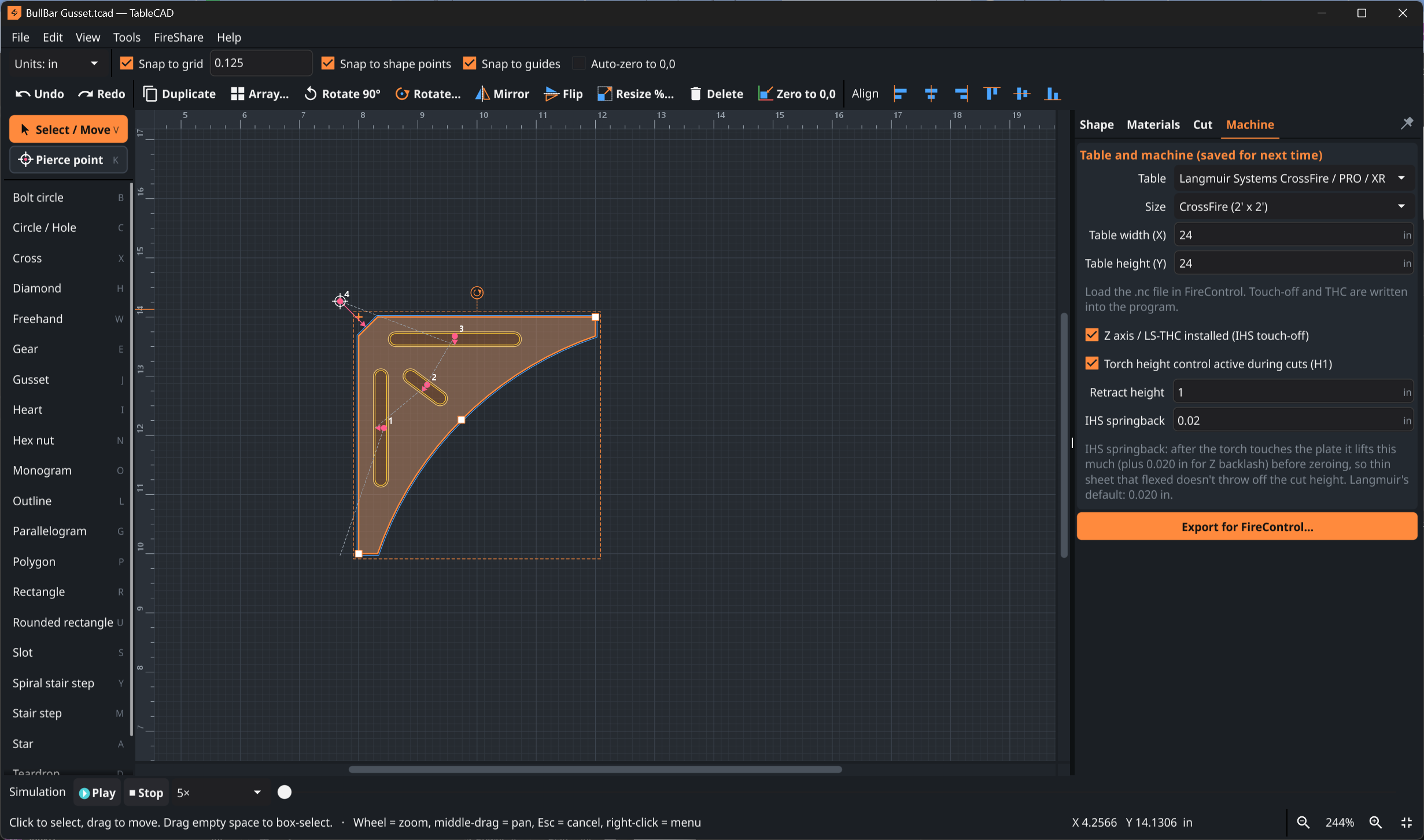
Draw, then decide how it cuts
Start with a shape from the library or a DXF you already have. Resize by exact dimension, add bolt-hole circles, mirror, array, combine with glue-together and bite-out. TableCAD then recognizes holes and outlines and cuts the holes first, so a freshly cut part is not free to shift while the torch is still working inside it.
Kerf compensation is set so the part comes out the size you drew, and the cut direction keeps the clean side on the part. Lead-ins start in scrap: straight, or a spiral from the center of a hole or from outside a part. Small holes slow down automatically. A warning appears when a part is off the table or a lead-in will not fit, which is exactly the kind of problem you want to learn about at the desk.
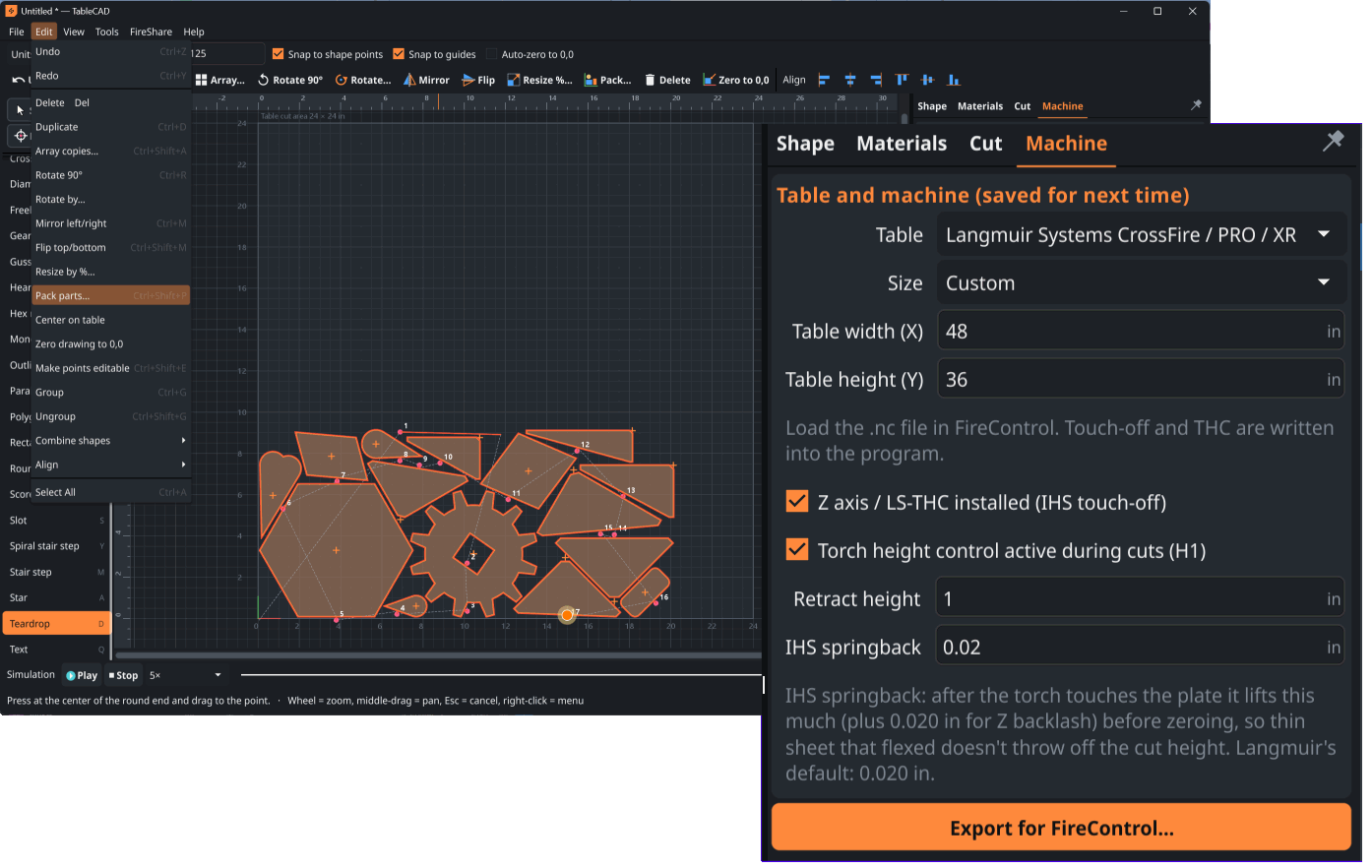
Machine settings: set once, check on purpose
Table size, Z axis, retract height and IHS springback are saved once in TableCAD’s machine settings. This is where height sensing enters the story, and where it is easy to blur two things together. Height sensing is a behavior of the machine and its control; TableCAD’s settings describe it so toolpaths are planned around it. Match them to what your table actually uses, as described in your Langmuir documentation.
The 32 editable cut-chart presets cover mild steel, stainless, aluminum and galvanized. Treat them as starting points to compare against your consumable and torch documentation.
Preview, then hand off
Run the simulation, change its speed, read the live G-code and note estimated cut time and length. Export, move the file to the table computer, and open it in FireControl, which validates it as it would any program.
One distinction matters. Langmuir identifies Gen2 CrossFire machines as FireControl-compatible, while legacy CrossFire tables use Mach3. CrossFire PRO also uses FireControl. TableCAD’s claim here is FireControl-ready output; if you run a legacy setup, confirm your file path with your machine configuration before cutting. This guide covers CrossFire and CrossFire PRO only. Langmuir has not approved or endorsed TableCAD.
CrossFire workflow comparison
For FireControl-compatible CrossFire and CrossFire PRO setups. Legacy Mach3 setups require a separate output check.
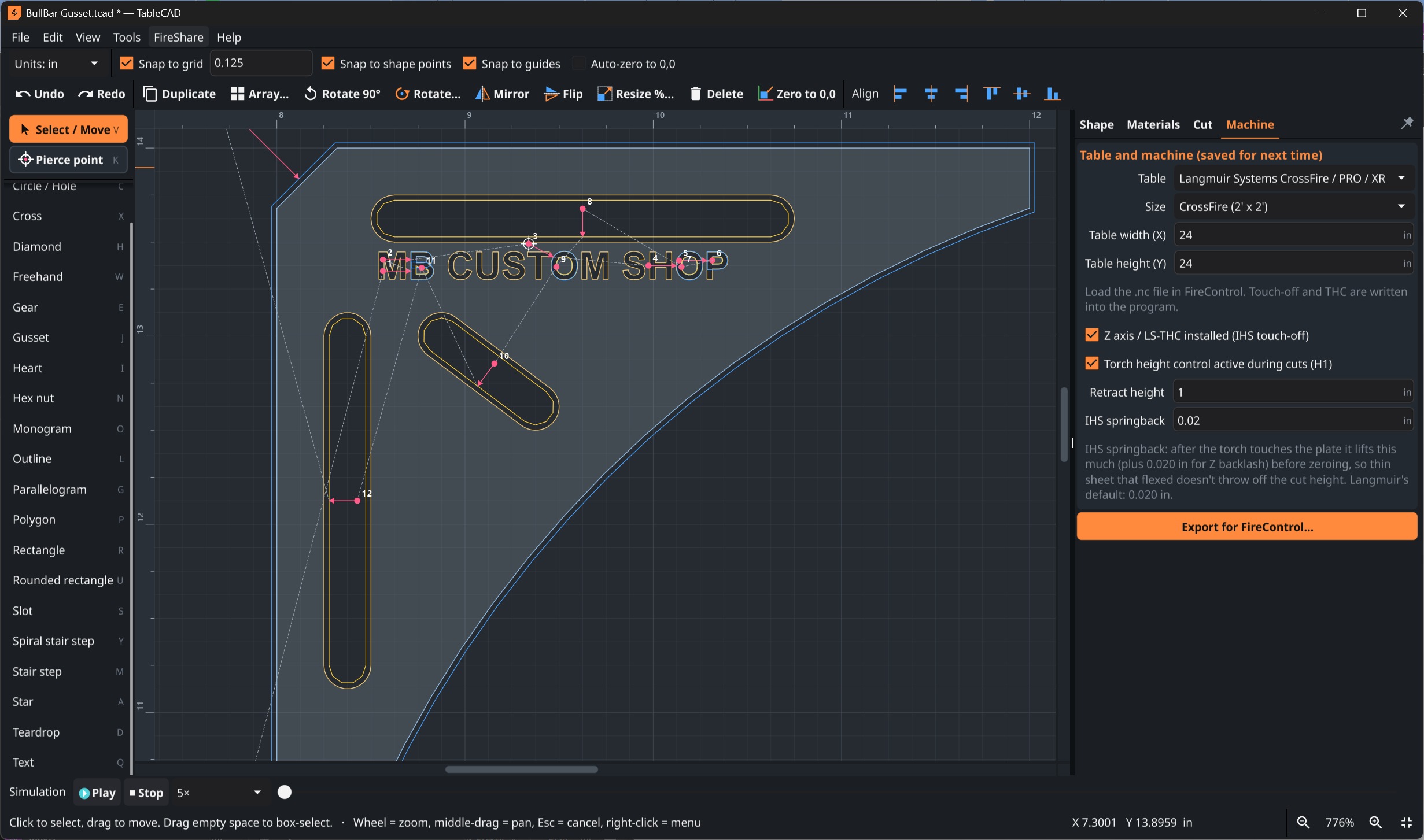
The long way
Three programs. More handoffs.
The TableCAD way
Design and toolpaths together. Export, then open the file in FireControl, which loads and validates it.
FireShare community library
TableCAD includes a built-in FireShare browser with 2,700+ community projects, pictures, search and categories. It opens the project page to download, then imports the file and keeps the designer’s credit and license.
Workflow map
CrossFire / CrossFire PRO path
- TableCAD · designDraw or import DXFShapes, bolt circles, or an existing DXF; text is an Extreme feature.
- TableCAD · prepMachine settingsTable size, Z axis, retract, IHS springback, units.
- TableCAD · prepHoles first, kerf, lead-insAutomatic order, size compensation, scrap-side pierce.
- TableCAD · prepSimulate and read G-codePlayback, cut time, cut length, warnings.
- Machine sideOpen in FireControlMachine software loads and validates the program.
Preflight before you cut
Confirm your machine and configuration, and keep the manufacturer’s manual open for the controller-specific steps.
- Confirm whether your CrossFire is FireControl-compatible or uses a legacy Mach3 setup.
- Match table size and Z / IHS values in TableCAD to the machine.
- Check consumables, material and cut-chart values against your torch documentation.
- For FireControl setups, open the exported file and read its validation result before any live cut.
- Keep the Langmuir manual and FireControl guide at hand.
External sources
Official pages used for brand-specific facts in this guide:
TableCAD is independent software and is not affiliated with, endorsed by, or sponsored by Langmuir Systems, ArcLight, Torchmate / Lincoln Electric, STV, WAZER, Flow, OMAX, Laguna, Jet Edge, WARDJet, Techni Waterjet, or any other table or waterjet manufacturer referenced on this site. All manufacturer names, product names, trademarks and controller names belong to their respective owners and are used only to describe compatibility and workflow context.