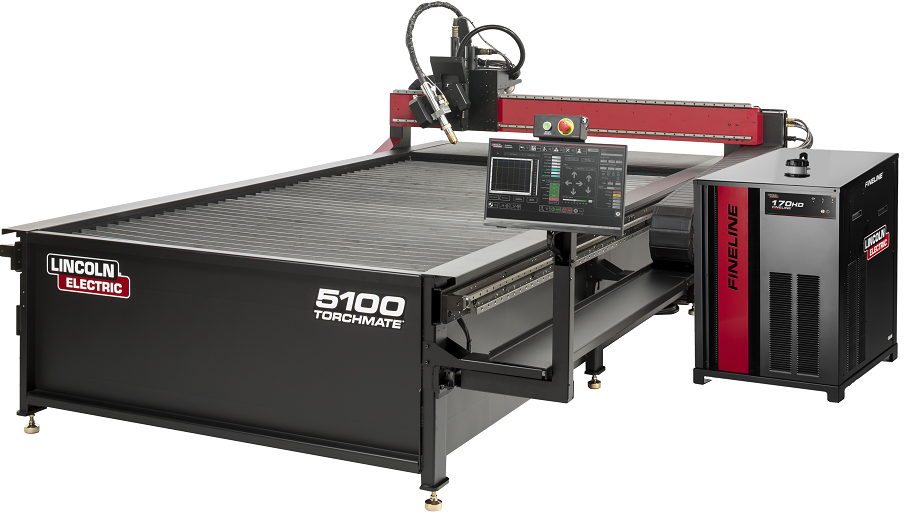
Start with what the table already is
Lincoln Electric describes the Torchmate 4400 as a fully assembled 4x4 CNC plasma system that includes CAD software, a controller, height control and a magnetic breakaway. That is a complete package, and a shop that owns one does not need TableCAD to make the table work.
So the question is narrower: is there a stage before the supplied tools where a quicker, simpler drawing environment helps? For certain jobs, yes. TableCAD is an optional upstream design and preparation workflow, and it does not replace the supplied control.
The bracket that comes up every week
Think of the ordinary work: a gusset, a mounting plate with a bolt circle, a hinge bracket, a tread. TableCAD’s library covers these directly, with gussets that include a weld-clearance clip, bolt-hole circles, hex nuts and tap-drill or clearance holes. Resize by exact dimension, mirror, array copies, center on the table.
The result is a part defined by numbers instead of a sketch on a scrap of plate, ready to be exported as DXF.
Revisions without the confusion
Repeat parts drift. A hole moves two millimeters, a plate grows an inch, and a month later nobody knows which file is current. A simple habit helps: name the file with the part and revision, change one thing per revision, and re-export. TableCAD can import existing DXF and G-code (.nc / .tap), including zip downloads, so an older program can be pulled back into a drawing and edited rather than redrawn.
Because DXF is the exchange format, the file you hand on is geometry. The supplied software then does its own toolpathing and its own checks, just as it would with a file from any other source.
Preview here, confirm there
TableCAD’s simulation, cut time and cut length estimates, and live G-code view are useful for judging a design: does the hole order make sense, does a lead-in fit, is the part on the table. They are not a substitute for the preview in the control that will actually run the job.
Controller-ready G-code is only worth describing once its format has been verified for your setup. Until then, DXF into the existing workflow is the straightforward route, and the manufacturer’s documentation remains the authority on how that software should be set up and operated.
Workflow map
Optional upstream stage ahead of supplied software
- TableCAD · designPick or draw the partPlate, bolt circle, or imported DXF; the ready-made gusset tool is an Extreme feature.
- TableCAD · prepName the revisionPart name plus revision, one change at a time.
- TableCAD · prepCheck holes, kerf, fitSimulate and review warnings.
- HandoffExport DXFMove the file to the table computer.
- Machine sideSupplied softwareIts CAM, control and height control take over.
Preflight before you cut
Confirm your machine and configuration, and keep the manufacturer’s manual open for the controller-specific steps.
- Treat the supplied software as the system of record for cutting.
- Confirm the DXF imports at the size you drew, in the units you expect.
- Follow the manufacturer’s manual for torch, height control and startup checks.
- Keep revision names consistent between design and cut files.
External sources
Official pages used for brand-specific facts in this guide:
TableCAD is independent software and is not affiliated with, endorsed by, or sponsored by Langmuir Systems, ArcLight, Torchmate / Lincoln Electric, STV, WAZER, Flow, OMAX, Laguna, Jet Edge, WARDJet, Techni Waterjet, or any other table or waterjet manufacturer referenced on this site. All manufacturer names, product names, trademarks and controller names belong to their respective owners and are used only to describe compatibility and workflow context.